







Web Overview
Summary: Networking › Switching › Edge › Synapse
Brief
The device provides the Web-based network management function to facilitate the operations and maintenance on devices. Through this function, the administrator can visually manage and maintain network devices through the Web-based configuration interfaces. Figure 1-1 shows a Web-based network management operating environment:
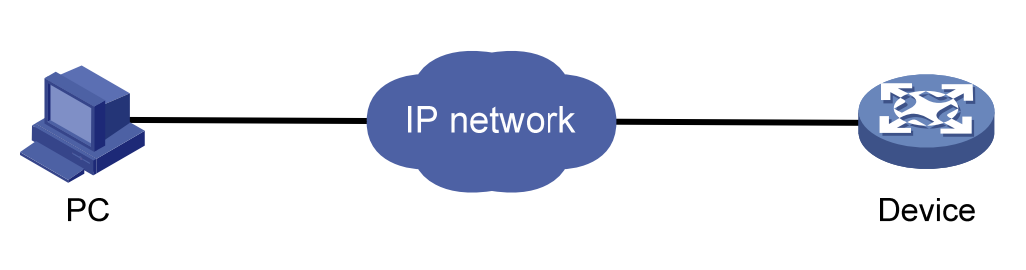
Logging in to the Web interface
The device is provided with the default Web login information. You can use the following default information to log in to the Web interface:
- Username: ‘admin’
- Password: ‘admin’
- IP address of the device: ’192.168.56.166’
To log in to the device through the Web interface:
- Connect the Ethernet interface of the device to the PC using a crossover Ethernet cable.
- Configure an IP address for the PC and ensure that the PC and device can communicate with each other properly.
- Modify the IP address of the PC to one that within the network segment 192.168.56.0/24 (except for 192.168.56.166), for example, 192.168.56.2.
- Open the browser, and input the login information.
- On the PC, open the browser, type the IP address http://192.168.56.166 in the address bar, press Enter and you can enter the login page of the Web interface, as shown in Figure 1-2. Input the username admin and password admin, and click Login.
- For better display results, please use edge, chrome, Firefox browsers, other browsers may have compatibility issues.
Logging out of the Web interface
Click Logout button in Auxiliary area to quit Web-based network management, as shown in Figure 1-3. The system does not save the current configuration before you log out of the Web interface. Therefore, we recommend that you save the current configuration before logout.
- You cannot log out by directly closing the browser.
Save Configuration
The save configuration module provides the function to save the current configuration to the configuration file for the next startup.
Click the Save button in Auxiliary area to save the current configuration to the configuration file, as shown in Figure 1-4.
Reboot
- Before rebooting the device, save the configuration; otherwise, all unsaved configurations are lost after device reboot. After the device reboots, you must re-log in to the Web interface.
Click Reboot button in Auxiliary area to reboot the device, as shown in Figure 1-5.
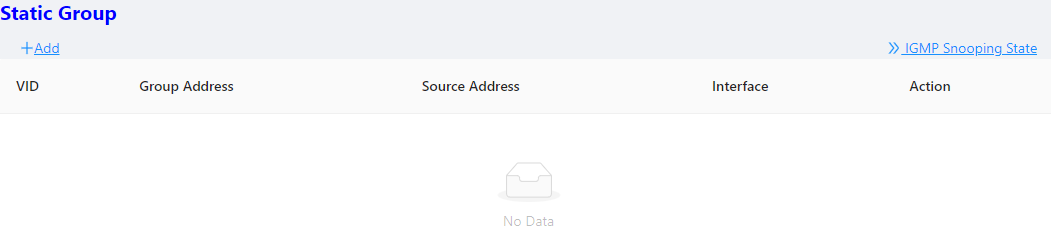
Introduction to the Web interface
The Web interface is composed of three parts: navigation area, auxiliary area, and body area, as shown in Figure 1-6.
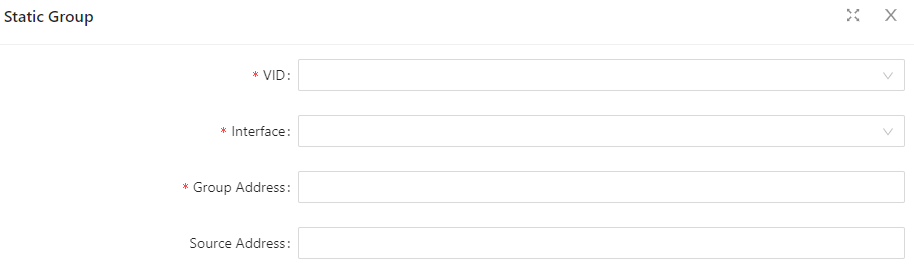
(1)Navigation area (2)Auxiliary area (3)Body area
- Navigation area: Organizes the Web-based NM function menus in the form of a navigation area where you can select function menus as needed. The result is displayed in the body area. The Web network management functions not supported by the device are not displayed in the navigation area.
- Auxiliary area:The area where you can search, alarm message prompt, save, exit, restart device and other operations.
- Body area: The area where you can configure and display a function.
