
Did You Know?
Hierarchical approvals let your manager know what people are trying to transfer
Hierarchical approvals let your manager know what people are trying to transfer
The system configuration module provides host name settings, services of Telnet, SSH, HTTP, HTTPS, and management IP setting. 5.1.1 Host name settings
Select Maintenance > system configuration from the navigation area to enter the system configuration page, as shown in Figure 5-1. User can set the host name of the switch here.
5.1.2 Services Enable
The service management module provides the following types of services: FTP, Telnet, SSH, TFTP, HTTP and HTTPS. You can enable or disable the services as needed. In this way, the performance and security of the system can be enhanced, thus secure management of the device can be achieved.
Telnet Server
The Telnet protocol is an application layer protocol that provides remote login and virtual terminal functions on the network.
SSH Server Secure Shell (SSH) offers an approach to securely logging in to a remote device. By encryption and strong authentication, it protects devices against attacks such as IP spoofing and plain text password interception HTTP Server
The Hypertext Transfer Protocol (HTTP) is used for transferring web page information across the Internet. It is an application-layer protocol in the TCP/IP protocol suite. You can log in to the device using the HTTP protocol with HTTP service enabled, accessing and controlling the device with Web-based network management.
HTTPS Server
The Secure HTTP (HTTPS) refers to the HTTP protocol that supports the Security Socket Layer (SSL) protocol. The SSL protocol of HTTPS enhances the security of the device in the following ways:
Uses the SSL protocol to ensure the legal clients to access the device securely and prohibit the illegal clients; Encrypts the data exchanged between the HTTPS client and the device to ensure the data security and integrity, thus realizing the security management of the device; Defines certificate attribute-based access control policy for the device to control the access right of the client, in order to further avoid attacks from illegal clients.
Configuring service (1) Select Maintenance > system configuration from the navigation area to enter the system configuration page, as shown in Figure 5-2. (2) Check the box in front of the services, Click Apply button to enable service. (3) When HTTPS Server is enabled, the certificate and private key should be uploaded. If no certificate is specified, the device will use the default certificate.
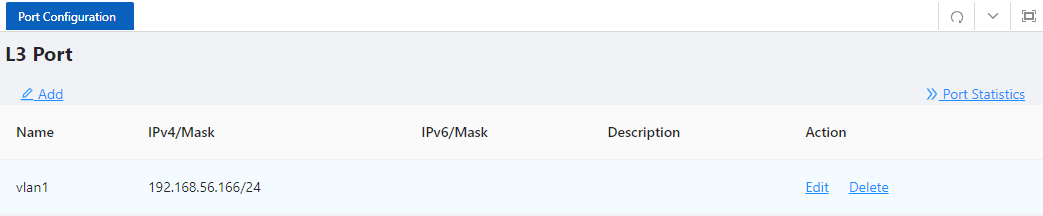
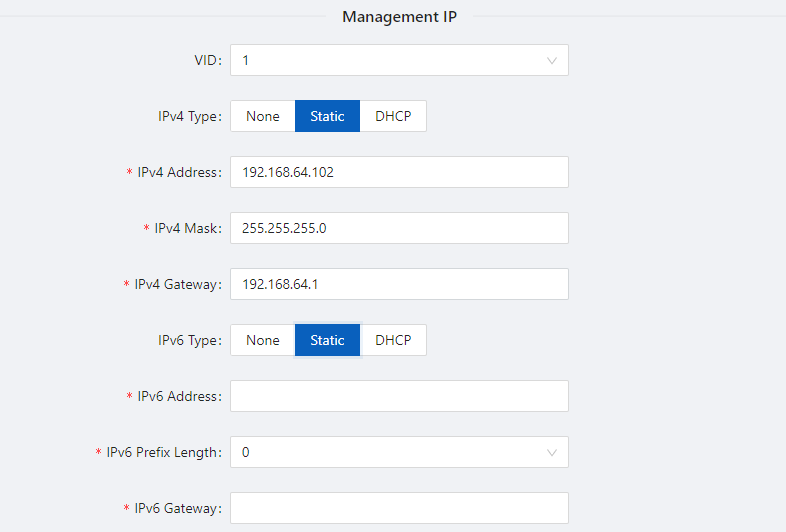
5.1.3 Management IP (1) Select Maintenance > system configuration from the navigation area to enter the system configuration page, as shown in Figure 5-3. Table 5-1 lists the configuration items of the Management IP Address.
The file management module includes basic information, image management, configuration management, certificate management, and page package management functions. 5.2.1 Basic Information
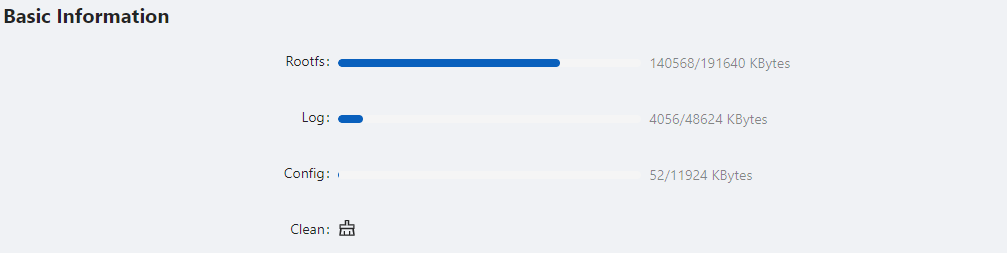
Select Maintenance > File Management > Basic Information from the navigation area to enter the page as shown in Figure 5-4. In the basic information page, you can view the usage of each partition of the device, and click the Clean button to clear the system log.
5.2.2 Image Management Software upgrade allows you to obtain a target application file from the current host and set the file as the main boot file or backup boot file to be used at the next reboot.
1.Select Maintenance > File Management > Image Management from the navigation area to enter the page as shown in Figure 5-5.

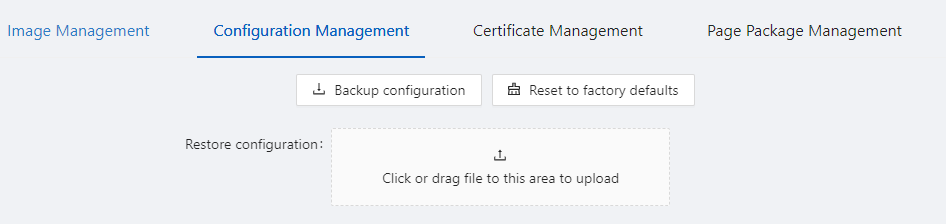
5.2.3 Configuration Management
Select Maintenance > File Management > Image Management from the navigation area to enter the page as shown in Figure 5-7.

Backup configuration
Click the Backup configuration button, a file download dialog box appears. You can save the file locally.
Restore configuration
After you click the Choose File button in this figure, the file upload dialog box appears. You can select the *. conf file to be uploaded, then the device will be reboot.
Reset to Factory Defaults
This operation restores the system to factory defaults, delete the current configuration file, and reboot the device. Click the Reset to Factory Defaults button to apply this operation. 5.2.4 Configuration Management
When you enable HTTPS, you need to upload the certificate and private key, as shown in Figure 5-8. If you do not specify a certificate, the device uses the default certificate.
5.2.5 Page Package Management
The page package management module provides the ability to obtain the target page package file from the local host and apply the file as a device page package file, as shown in Figure 5-9.

In the user management part, you can:
Set the username, password.
Create a new user.
Select Maintenance > User Management from the navigation area to enter the User Management page, as shown in Figure 5-10. Table 5-2 lists the configuration items of the User Management.
The system time module allows you to display and set the device system time on the Web interface. The device supports setting system time through manual configuration and automatic synchronization of NTP server time.
An administrator cannot keep time synchronized among all the devices within a network by changing the system clock on each device, because this is a timeconsuming task and cannot guarantee clock precision.
Defined in RFC 1305, the Network Time Protocol (NTP) synchronizes timekeeping among distributed time servers and clients. NTP allows quick clock synchronization within the entire network and ensures a high clock precision so that the devices can provide diverse applications based on consistent time. 5.4.1 View the system time
Select Maintenance > Time Management from the navigation area to enter the time management page, as shown in Figure 5-11. The current system time and clock status are displayed. Table 5-3 shows the network time configuration items.
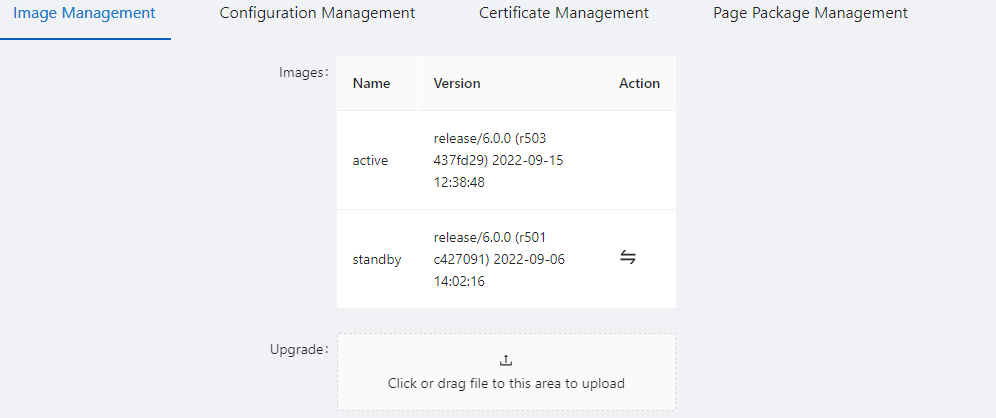
Table 5-3: System time configuration items
| Item | Description |
|---|---|
| Clock | System date and time |
| Time Zone | Choose time zone |
| Enable NTP | EnableDisable NTP |
| NTP Server | Set the NTP server IP address |
5.4.2 Configuring System Time

5.4.3 Configuring NTP Server
Simple Network Management Protocol (SNMP) offers the communication rules between a management device and the managed devices on the network; it defines a series of messages, methods, and syntaxes to implement the access and management from the management device to the managed devices. SNMP has the following characteristics:
SNMP mechanism An SNMP enabled network comprises Network Management Station (NMS) and agent.
SNMP provides the following four basic operations:
SNMP Configuration (1) Select Maintenance > SNMP from the navigation area to enter the SNMP page, as shown in Figure 5-15. (2) Select the SNMP version, configure the user, authentication encryption password, Trap host, and click the Apply button to complete the configuration.
